Devices
Devices are IoT hardware units registered in the platform to send telemetry, status, and sensor data.
This page allows you to manage all connected devices, monitor their health, and ensure they are correctly linked to assets and applications.
Tasks Overview
- View and filter devices by status and type.
- Add new devices to the platform.
- Edit existing device details.
- Delete devices when no longer needed.
- View device profiles and real-time readings.
Tip: Always verify device connectivity and battery status after adding a new device.
Device List Overview
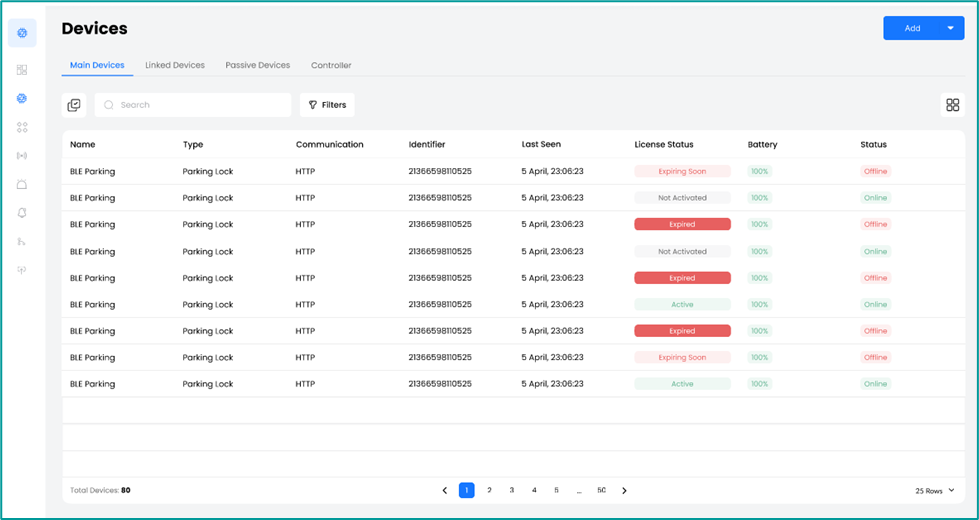
The device list provides a centralized view of all registered IoT devices and their current operational status.
- Navigate to Device Management → Devices from the sidebar.
- Browse all registered devices in a tabular view.
- View key columns such as:
- Device Identifier
- Online / Offline Status
- Battery Level (if supported)
- Use search and filters to locate devices by type or identifier.
Add New Device
Adding a device registers new hardware in the platform so it can start sending data and be linked to assets or applications.
To add a new device:
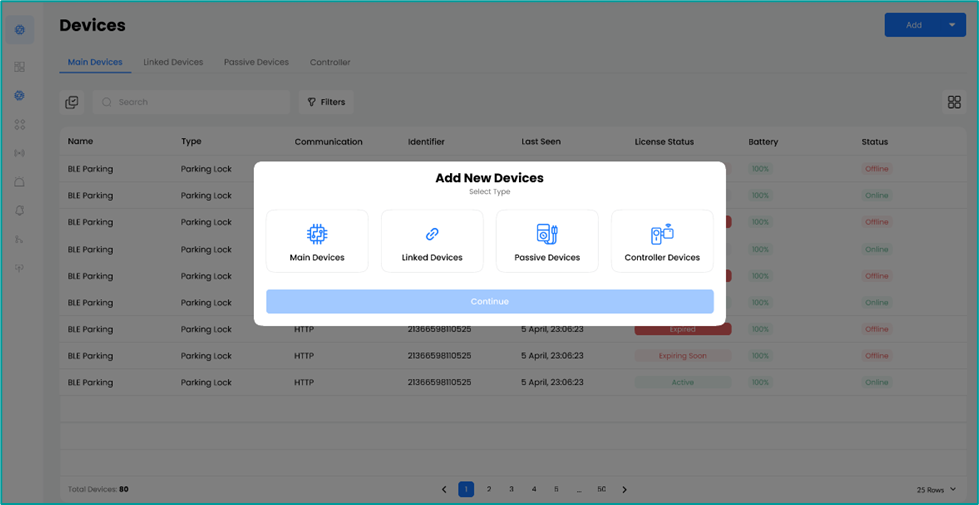
- Click Add in the Devices page.
- Select the Device Type:
- Main Devices — Devices with built-in sensors that can also receive data from linked devices (e.g., BLE sensors).
- Linked Devices — Secondary sensors that must connect through a main device.
- Controllers — Devices that aggregate data from multiple sensors using protocols such as Modbus or LON.
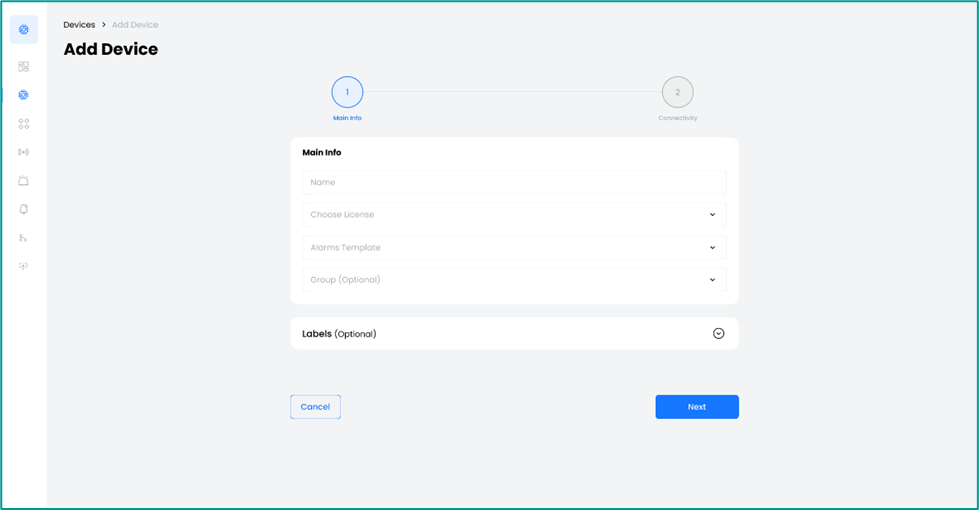
- Enter the required information:
- Device identifier
- Communication protocol
- Click Save to register the device.
Edit Existing Device
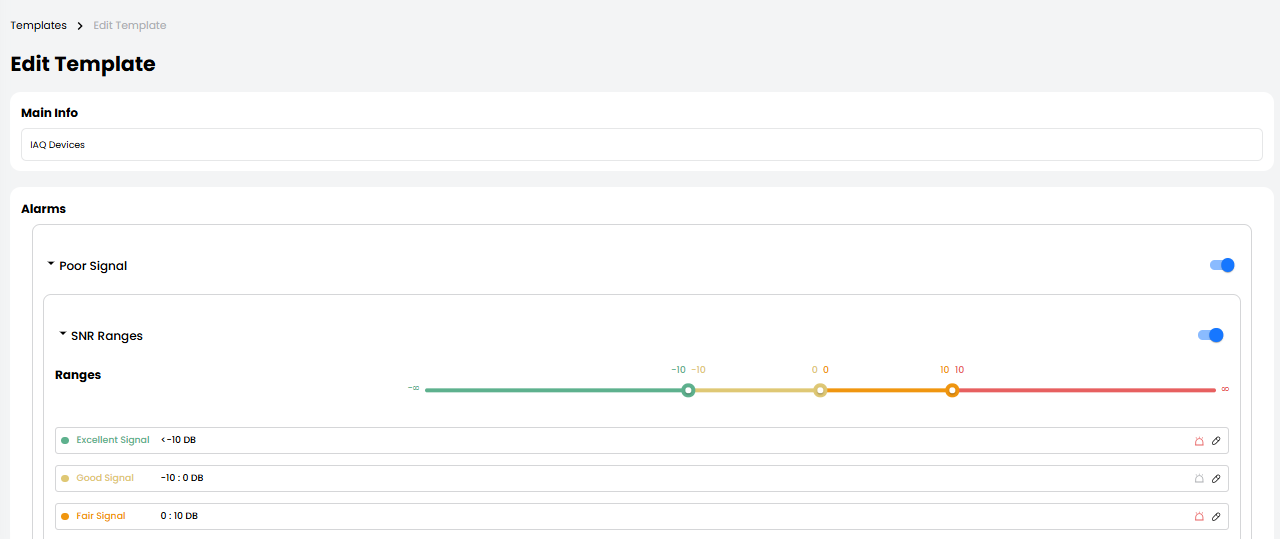
Editing a device allows you to update its configuration or metadata without re-registering the hardware.
To edit an existing device:
- Select a device from the list.
- Click the Edit icon.
- Update the required fields.
- Click Save to apply changes.
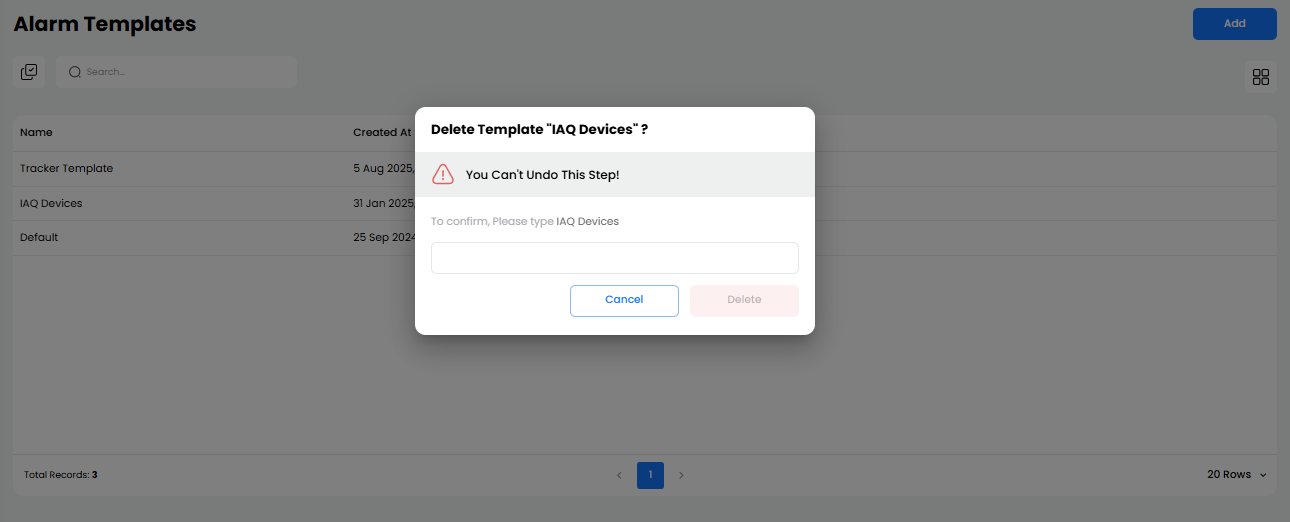
Delete Existing Device
Deleting a device removes it from the platform when it is no longer in use or decommissioned.
To delete a device:
- Select a device from the table.
- Click the Delete icon.
- Confirm the deletion action.
⚠️ Deleting a device permanently removes it from the system and stops all data ingestion.
View Device Profile
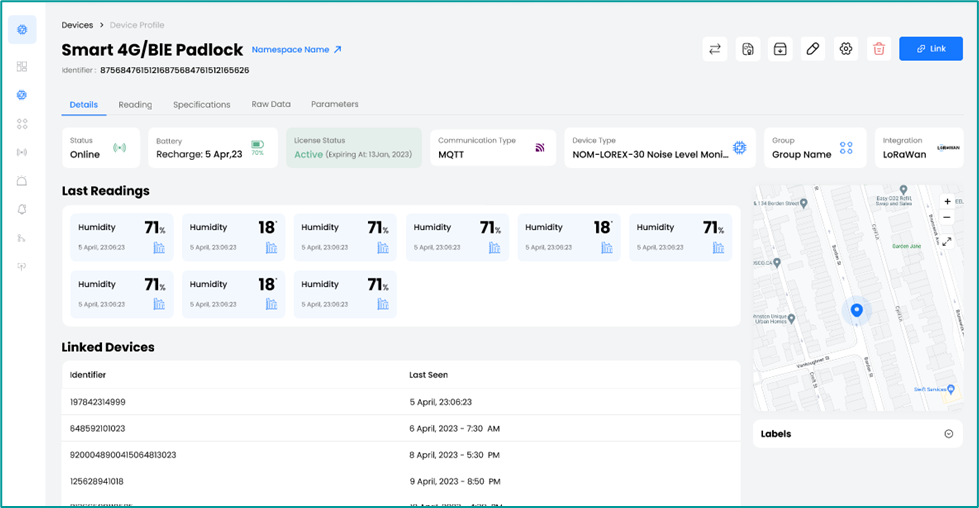
The device profile provides detailed insight into device health, connectivity, and recent readings.
To view a device profile:
- Click on a device entry in the device list.
- Review detailed information including:
- Connectivity status
- Battery level (if available)
- Recent sensor readings
- Linked asset and application
- Use this view to validate device health and confirm real-time data flow.
Example Scenario
This example illustrates how devices are added and used in a real deployment.
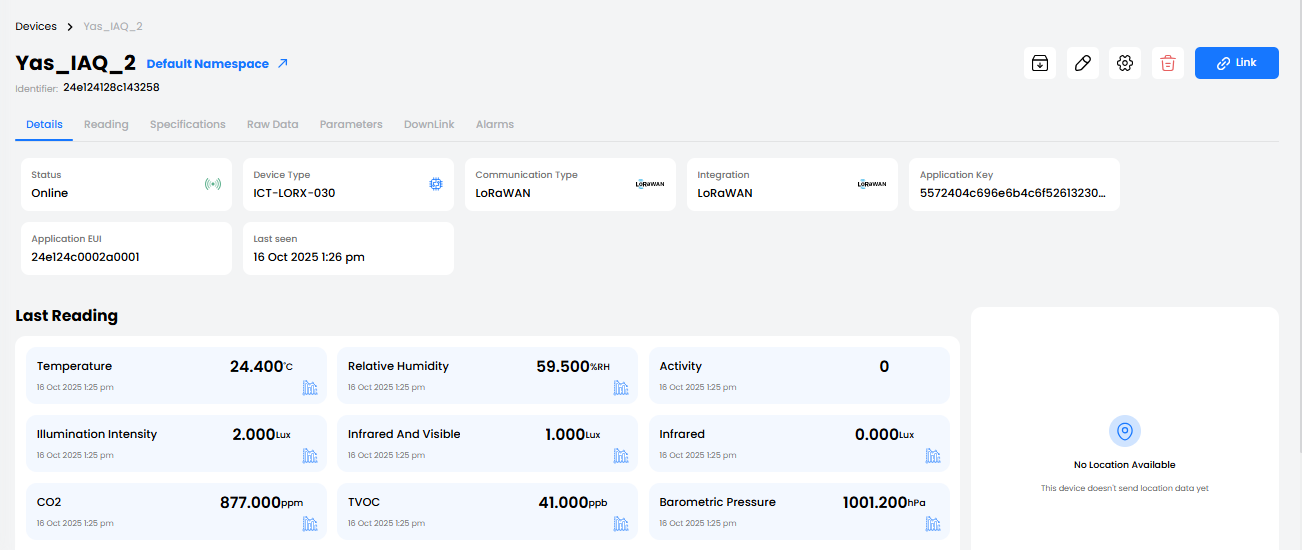
A new indoor air quality sensor is deployed in an office:
- The IoT Administrator adds the sensor as a device, entering its identifier and communication type.
- The device is linked to the office asset and associated application (e.g., Ignite Shield).
- Sensor readings appear on dashboards, giving the facility manager real-time air quality visibility.
Key Notes
- Device status updates dynamically as Online or Offline.
- Battery level is shown when supported; otherwise, NA is displayed.
- Devices must be linked to assets and applications to provide full operational context.