Tenant App
System Overview
The ALEF 360 Tenant App is a mobile self-service portal that enables tenants to raise, track, and manage service requests for the facilities they occupy. It simplifies communication between tenants, helpdesk teams, and facility management by providing a clear, structured workflow for request creation and status tracking.
The app displays only the assets and locations that are contractually linked to each tenant, ensuring that requests are always associated with the correct facility or space.
Key Capabilities
This focused, tenant-facing layer reduces inbound calls and emails to the helpdesk, improves data quality for work orders, and provides a more transparent experience for occupants.
Quick Start Guide
Receive Login Credentials
The system administrator or helpdesk team creates a tenant user in ALEF 360 CAFM and shares the username and password with the tenant.Sign In to the App
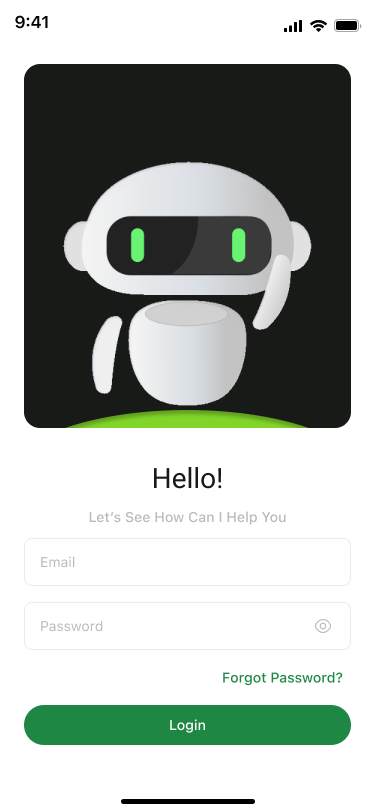
Open the Tenant App and enter the provided username and password on the Login screen. Tap Login to access the main dashboard.Verify Linked Assets
Navigate to the Assets tab to confirm that the correct facility, location, space, or equipment is visible. If any asset is missing or incorrect, contact the helpdesk or building management.Create a Service Request
From the Service Requests tab, tap Create New Service Request. Select the problem location, service group, service type, and job type from the dropdown lists. Enter a clear description of the issue and proceed to submit.Track Request Status
Open the Service Requests tab to view all submitted requests. Use filters and search to locate a specific request and monitor its status (e.g., Pending, In Progress, Completed, Closed).Manage Profile & Log Out
Open the Profile section to review the registered email and account information. Use Log out when finished.
Module Guide
View and select facilities, locations, spaces linked to your tenancy.
View Module →Create, track, and manage service requests for your facilities.
View Module →Manage your account details, login sessions, and log out securely.
View Module →Persona Use Cases
Tenant / Occupant
- Raises facility-related service requests for occupied spaces
- Relies on the Assets tab to confirm locations
- Monitors progress via Service Requests tab
- Benefits from clear request categorization and status updates
Helpdesk / Customer Service Agent
- Receives structured, pre-classified requests from tenants
- Reduces follow-up calls and missing information
- Converts tenant requests into work orders
- Updates status reflected in the Tenant App
Facility Manager / Contract Manager
- Monitors request volumes and response times
- Uses analytics to identify recurrent issues
- Identifies service trends requiring additional resources
Key Notes
Access & Security
Tenant accounts are created and managed centrally; self-registration is disabled.
Asset Visibility
Tenants only see assets explicitly linked to their account or contract. Any missing or incorrect asset mapping must be corrected by the administrator in the core ALEF 360 CAFM platform.
Request Quality
Accurate selection of Problem Location, Service Group, Service Type, and Service Job is critical. Clear descriptions support faster diagnosis and resolution by technicians.
Status Communication
Request statuses are synchronized from the CAFM/CMMS backend. Any change (e.g., from Pending to In Progress) is reflected in the Tenant App, reducing the need for separate email or phone updates.
Usage Best Practices
Tenants should use the app as the primary channel for non-emergency facility issues. For safety-critical or emergency events, organizations may define alternative escalation paths (e.g., direct hotline).