Technician App
System Overview
The ALEF 360 Technician App is a mobile field-service companion designed to help technicians execute, track, and complete work orders assigned from the ALEF 360 CAFM | CMMS platform. It provides a streamlined, day-focused interface that shows only what matters today, guiding technicians through a clear step-by-step workflow on site.
The app captures all job-related data—time, photos, inventory, measurements, notes, and client feedback—in a structured way, ensuring accurate SLA tracking, complete audit trails, and faster supervisor approvals.
Key Capabilities
All data is synchronized to the ALEF 360 CAFM | CMMS backend, supporting accurate SLA tracking, audit trails, and supervisor approvals.
Work Order Lifecycle
The Technician App guides users through a structured workflow from assignment to completion:
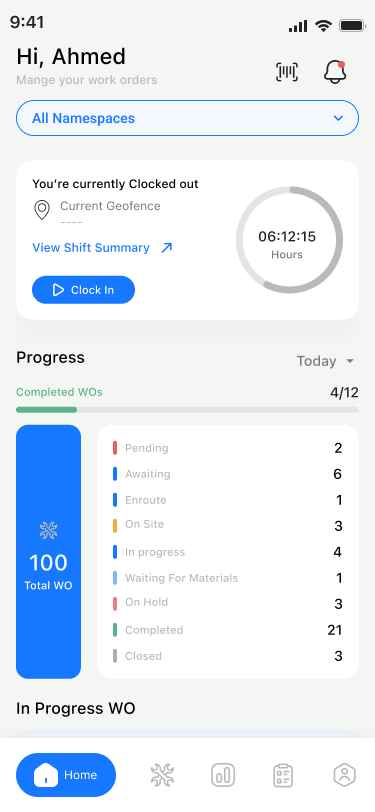
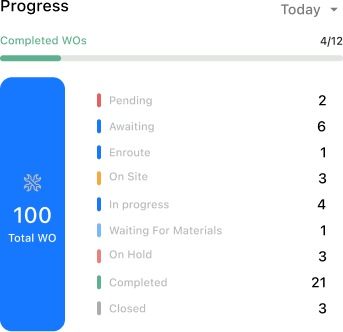
| Status | Description |
|---|---|
| Pending | Work order assigned but not yet accepted by technician |
| Awaiting | Accepted and ready to start |
| Enroute | Technician travelling to site |
| On Site | Technician has arrived at location |
| In Progress | Active work being performed |
| On Hold | Work paused (waiting for parts, approvals, etc.) |
| Completed | Work finished, pending supervisor review |
| Closed | Fully closed with all approvals |
Quick Start Guide
Receive Login Credentials
Your administrator creates a technician account in ALEF 360 CAFM | CMMS and shares your username and password. Site access, contract mapping, and permissions are configured centrally.Sign In to the App
Open the Technician App, enter your credentials, and tap Login to access the Home dashboard.Review Today's Work Orders
The Home screen displays work orders assigned to you and filtered for today. Check the In Progress and Awaiting panels to prioritize your tasks.Accept and Start a Work Order
From Assigned → Pending, tap Accept to move the work order to Awaiting. Then tap Start and indicate if you're travelling or already on site.Execute Work On Site
Complete safety checklists, start asset timers, capture before photos, add inventory items, record measurements, and document your work.Complete the Work Order
Tap End to open the completion flow. Record symptoms, root causes, capture after photos, collect customer feedback and signature, then submit.Log Out When Finished
Open the Profile section and tap Log out to end your session securely.
Module Guide
Secure sign-in, session management, and logout procedures.
View Module →Daily overview, status summary, QR scanning, and notifications.
View Module →Accept, execute, and manage assigned work orders through their lifecycle.
View Module →Generate new work orders directly from the field.
View Module →End flow, service reports, customer feedback, and signatures.
View Module →Persona Use Cases
Field Technician
- Reviews today's work orders immediately after logging in
- Follows the guided workflow: safety checklists, timers, before/after images
- Uses push notifications to stay updated on new assignments
- Captures customer feedback and signatures for accountability
- Uses Temporary Restoration when parts are unavailable
Supervisor / FM Manager
- Monitors technician workload and SLA performance
- Reviews service reports and validates temporary restorations
- Uses Timeline and Status tabs to investigate delays
Key Notes
Day-Focused Workflow
The app intentionally displays only today's work orders by default, reducing noise and helping technicians focus on immediate priorities. Use the calendar view or filters to access historical or future tasks when needed.
Platform-Driven Access Control
All login credentials, roles, permissions, and site/contract access are centrally managed in the ALEF 360 CAFM | CMMS platform. Technicians only see work orders and locations they are authorized to access.
Guided Execution & SLA Alignment
The step-by-step workflow ensures technicians capture every action needed for accurate SLA tracking. Timely status updates (Accept, Enroute, On Site, Start, Complete) prevent breaches and maintain service transparency.
Operational Best Practices
- Review today's work orders immediately after logging in to plan your day
- Use push notifications and the Pending → Awaiting → In Progress structure to understand which tasks need immediate action
- Follow the full workflow—safety checklists, timers, before/after images—for quality and compliance
- Capture accurate customer feedback and signatures to streamline supervisor approvals
- Use Temporary Restoration only when a partial fix is done and ensure revisit creation is triggered