Assets
The Assets module provides a centralized hub for managing all physical assets, facilities, and their components across your organization.
Navigation: Sidebar → Assets
Overview
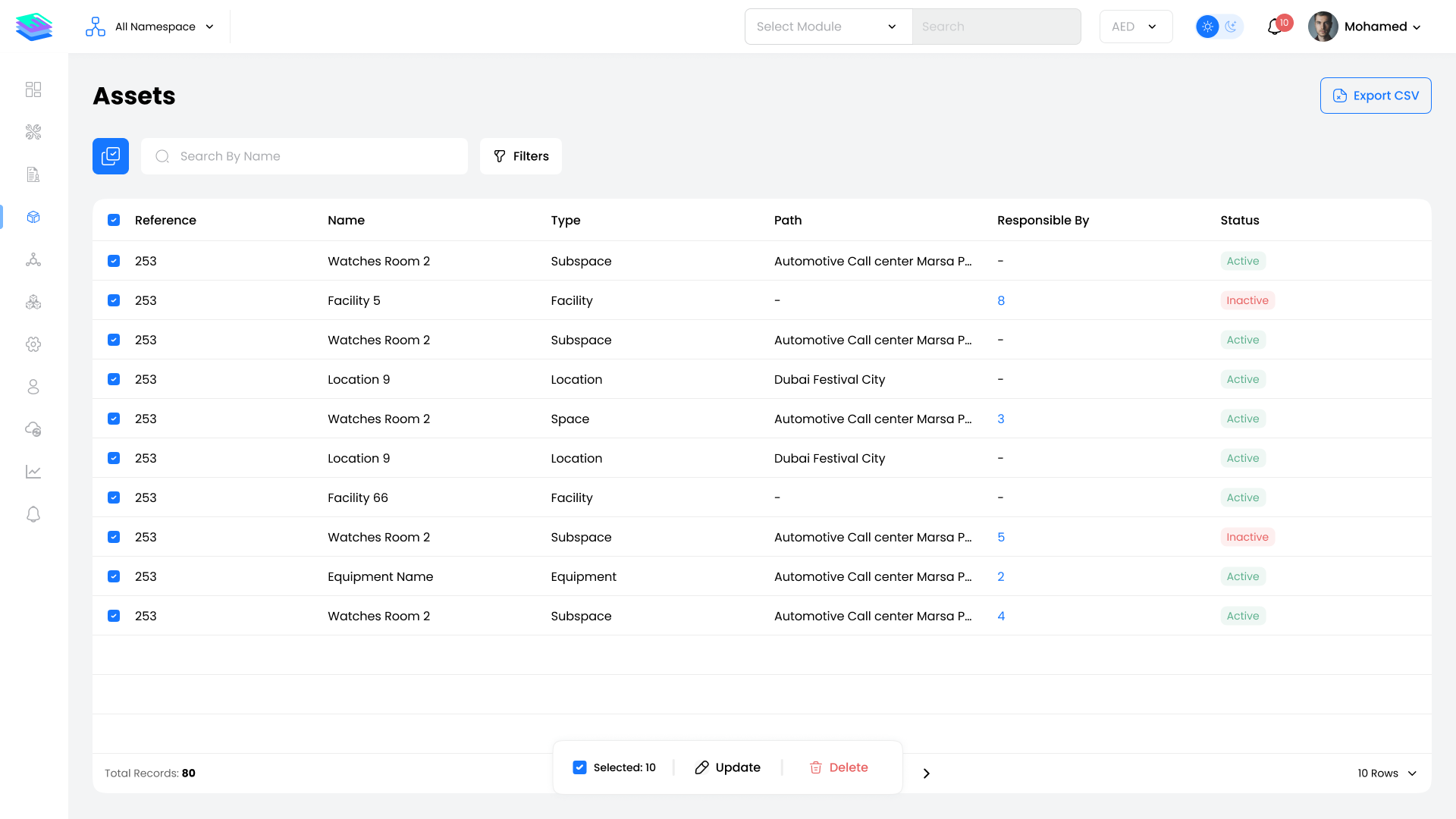
The Assets module displays all organizational assets in a unified table view. Upon first access, the main page shows:
| Column | Description |
|---|---|
| Reference | Unique identifier or code for the asset |
| Name | Display name of the asset |
| Type | Asset category (Facility, Location, Space, Subspace, Equipment) |
| Path | Hierarchical location path |
| Responsible By | Assigned person or group |
| Status | Current operational status |
Available Actions:
- Filter by Type and Status
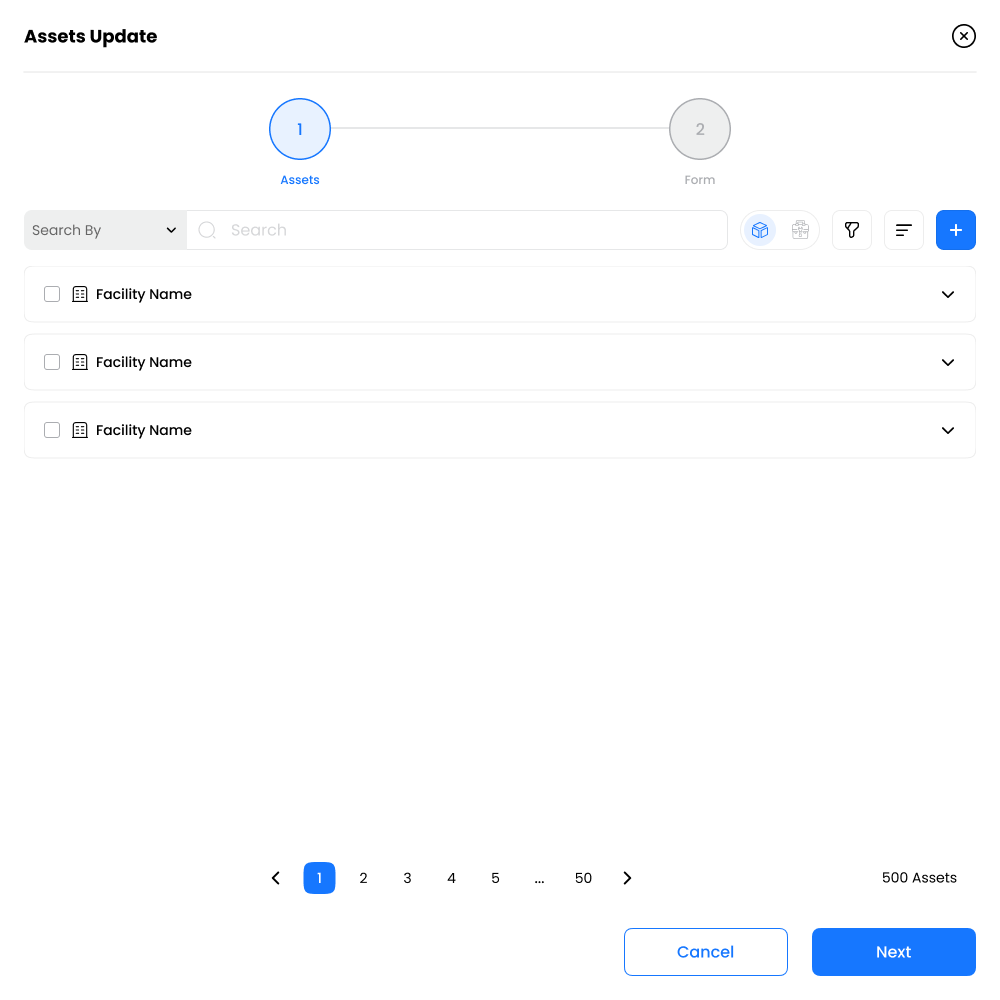
- Bulk selection for delete or update operations
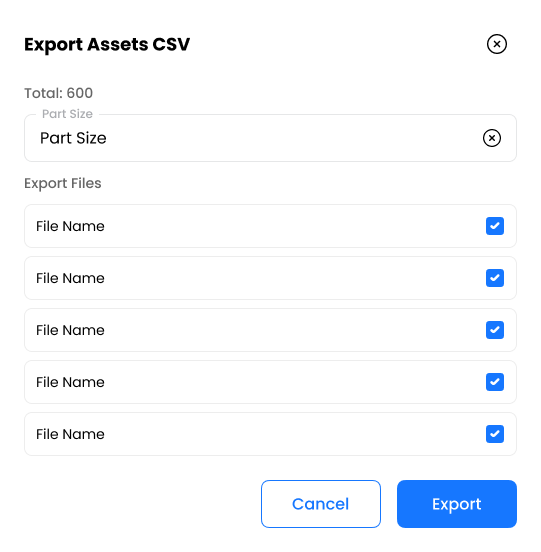
- Export to CSV
- Search by name or reference
Asset Hierarchy
Assets in ALEF 360° follow a structured five-level hierarchy:
Facility
  └── Location
        └── Space
              └── Subspace
                    └── Equipment
| Level | Description | Parent |
|---|---|---|
| Facility | Top-level physical structure (building, campus) | None |
| Location | Area within a facility (floor, wing, zone) | Facility |
| Space | Specific room or area within a location | Location |
| Subspace | Subdivision of a space | Space |
| Equipment | Individual asset or machine | Any level |
Key Capabilities
| Feature | Description |
|---|---|
| Tree/List Views | Toggle between hierarchical tree or flat list display |
| Bulk Operations | Update or delete multiple assets simultaneously |
| CSV Export | Download asset data for reporting or analysis |
| QR Code Generation | Create scannable codes for asset tracking |
| Search & Filter | Locate assets by name, reference, type, or status |
Module Guide
Asset Types
| Asset Type | Documentation |
|---|---|
| Facilities | Manage buildings and campuses → |
| Locations | Manage floors, wings, and zones → |
| Spaces | Manage rooms and areas → |
| Subspaces | Manage space subdivisions → |
| Equipment | Manage machines and devices → |
Asset Groups
Organize assets into logical groups for easier management and access control.
Quick Start Guide
- Create Facilities — Start by adding your top-level buildings or campuses
- Add Locations — Define areas within each facility
- Create Spaces — Add rooms or zones within locations
- Define Subspaces — Optionally subdivide spaces
- Register Equipment — Add individual assets at any level
- Assign Users — Link personnel to assets for responsibility tracking
- Configure Parameters — Set up monitoring and tracking attributes
Asset Profile Structure
Each asset profile contains:
| Tab | Description |
|---|---|
| Overview | Main information, status, and linked entities |
| Readings | Parameter data from connected equipment |
| Assets | Child assets in the hierarchy |
| Users | Assigned personnel and groups |
| Work Orders | Related maintenance activities |
| Scheduled Maintenance | Recurring service plans |
| Calendar | Visual timeline of activities |
Key Notes
- Deleting a parent asset removes all child assets beneath it
- Assets linked to active work orders or contracts cannot be deleted
- Equipment can be linked to any level in the hierarchy
- Use Asset Groups to organize assets across different facilities
- QR codes enable mobile scanning for quick asset access