Import CSV
System Overview
The Import CSV module enables bulk loading of structured data into the system using predefined CSV templates. Supported data types include Assets, Parameters, Checklists, Work Orders, Users, and Inventory. Each template defines required columns and formatting for proper validation.
Navigation: Sidebar → Settings → Import CSV
Key Capabilities
Quick Start Guide
- Click Import Button
From the Import CSV page, click the Import button to begin the upload process. - Select Template Type
Choose the target module and template from the dropdown (Assets, Parameters, Checklists, Work Orders, etc.). - Download Template
Download the selected CSV template. Review required columns and formatting rules. - Fill in Data
Populate the template with your data. Preserve column names and structure for proper validation. - Upload File
Click Upload File to submit your completed CSV. The system validates and imports the data. - Review Status
Check the import table for status (Complete, Error, Partial) and review any errors for correction.
Module Guide
1. Import Table Overview
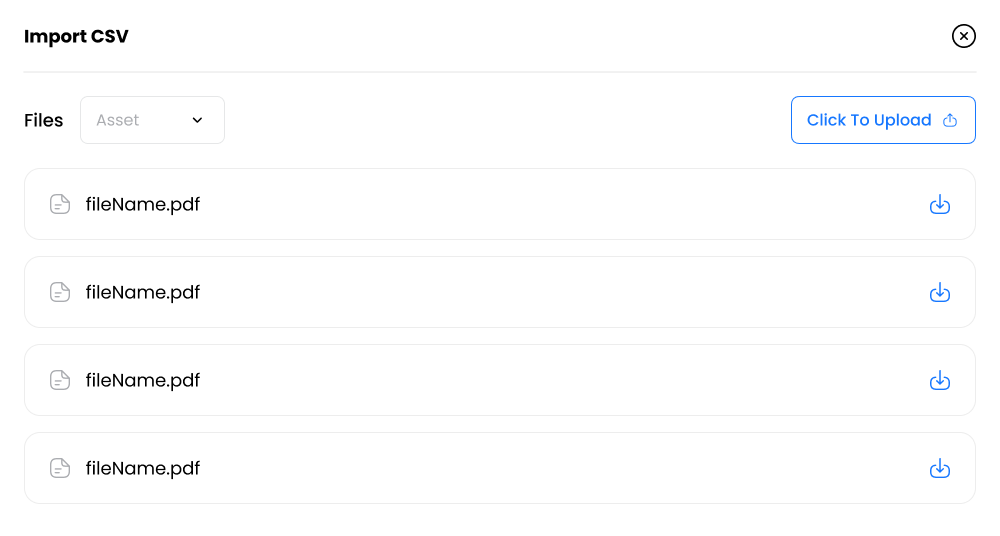
Purpose: View all import jobs with their status and error counts.
| Column | Description |
|---|---|
| Files | Total number of imported files |
| Errors | Total errors encountered during import |
| Created At | Date and time of upload |
| Updated At | Last update timestamp |
| Status | Complete, Error, or Partial |
2. Supported Import Types
Facilities, Locations, Spaces, Sub-spaces, Equipment
Items, Suppliers, Stock quantities
Users, Parameters, Checklists
Bulk work order creation
Key Notes
Validate Before Import
Always validate CSV data before import. Ensure required fields are populated and values match configuration lists (types, codes) to avoid inconsistent records.
Test with Small Files
Start with smaller test files where possible. This helps identify formatting issues before committing large datasets.
Keep Backups
Keep a backup of original files for audit and rollback purposes. Document any transformations applied before import.