Contracts
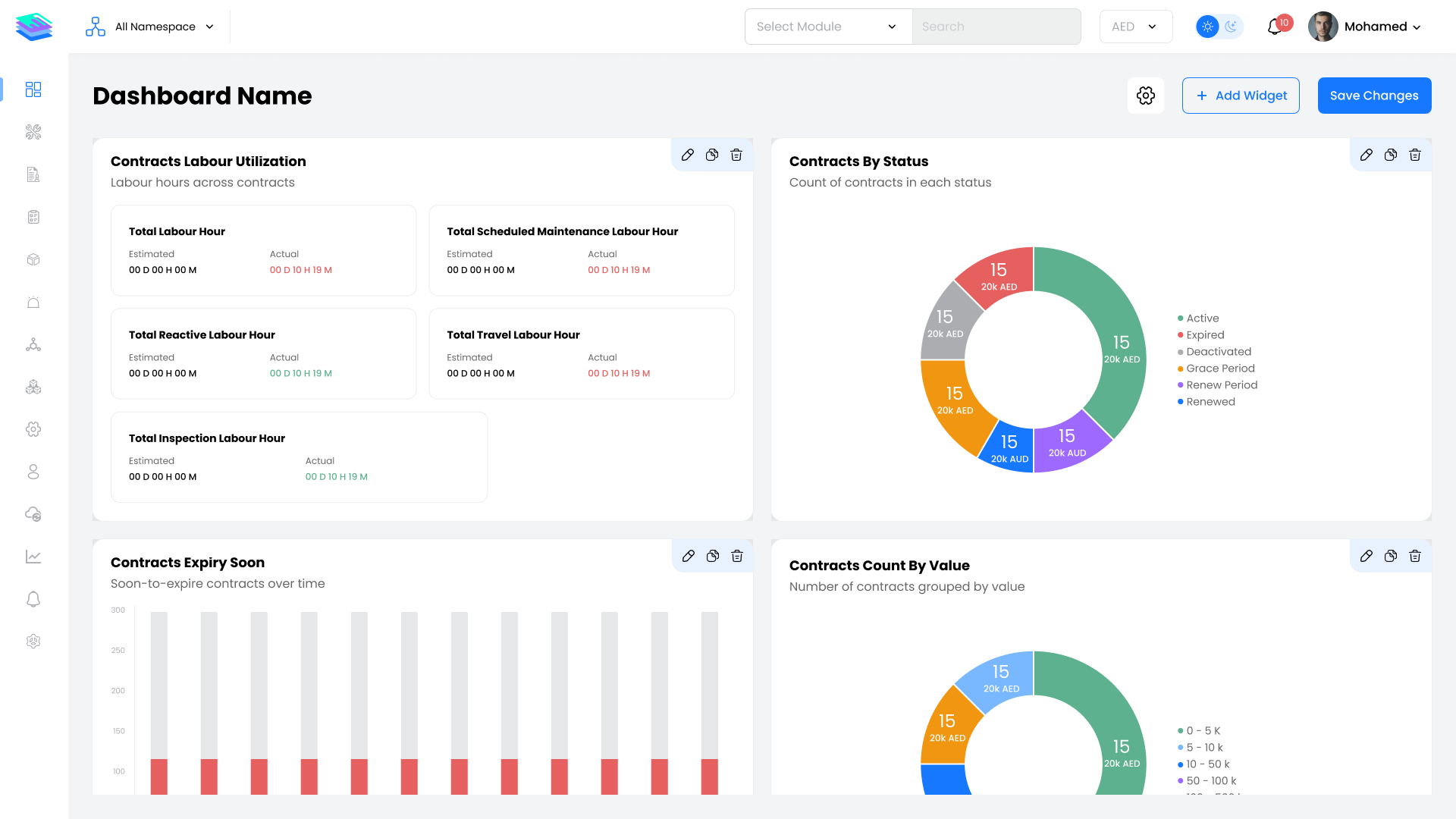
The Contracts module manages formal service agreements between your facility management organization and its customers or subcontractors.
Navigation: Sidebar → Performance → Contracts
Overview
Contracts in ALEF 360° define the scope, terms, and expectations for facility management services. The system supports two contract types to cover both customer relationships and vendor partnerships.
Contract Types
Customer Contracts
Agreements between the Facility Management (FM) company and customers (asset owners).
| Field | Description |
|---|---|
| Contract Name | Unique name identifier for the contract |
| SAP Reference | External reference ID for integration |
| Customer Name | The customer party in the agreement |
| Assets Covered | Number of assets serviced under this contract |
| Start Date | Contract commencement date |
| Renew Date | Date when renewal process begins |
| End Date | Contract expiration date |
| Service Group Covered | Services included in the contract |
| Managing Entities | FM personnel responsible for contract management |
| SLA | Linked service level agreement |
| Contract Type | Classification of the contract |
| Status | Current contract state |
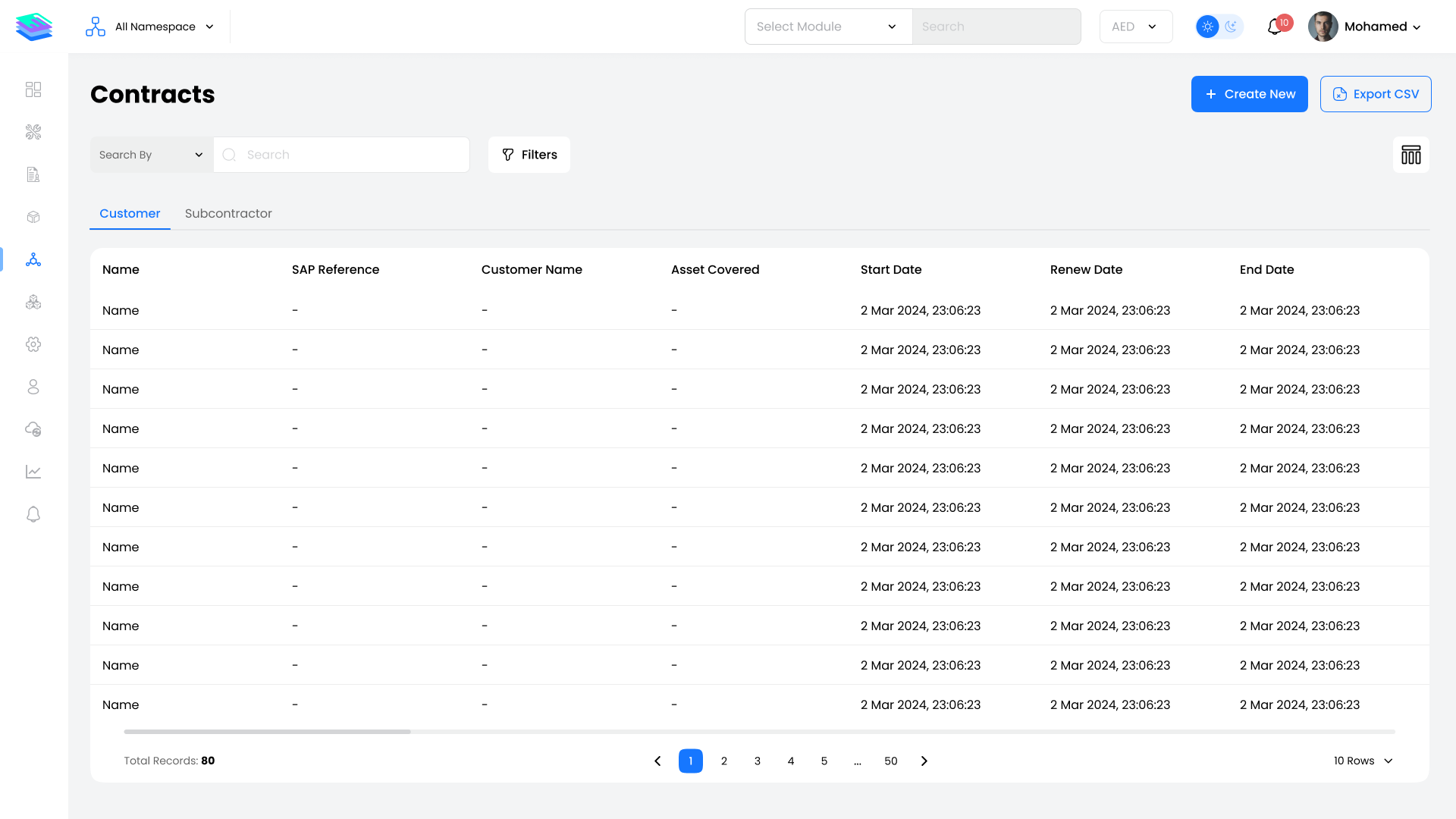
Subcontractor Contracts
Agreements between the FM company and vendor partners for outsourced services.
All fields are the same as Customer Contracts, with these differences:
| Field | Description |
|---|---|
| Subcontractor Name | The vendor partner in the agreement |
| Assets Covered | Number of assets subcontracted |
| Service Group Covered | Services handled by the subcontractor |
Contract Status
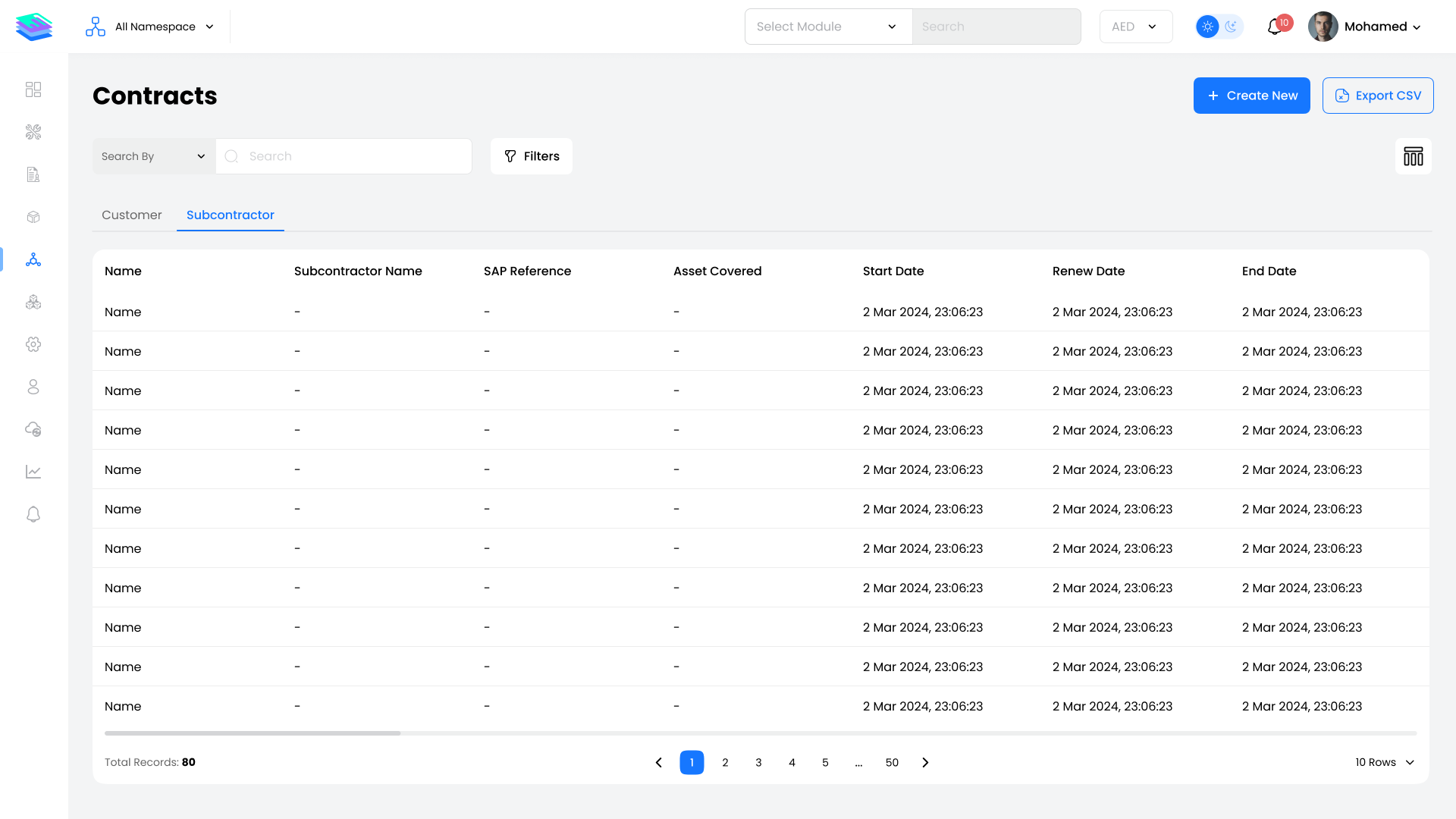
Contracts automatically transition through the following statuses:
| Status | Description |
|---|---|
| Active | Contract is currently live and operational |
| Deactivated | Contract has been manually disabled |
| Grace Period | Contract has entered its grace period before expiration |
| Expired | Contract has exceeded its end date and grace period |
| Renewed Period | Contract has reached its renewal date |
| Renewed | Contract has been successfully renewed |
Contract List View
The contract list page displays all contracts in a table format with key information:
- Contract Name and Reference
- Customer/Subcontractor Name
- Contract Type
- Start Date, End Date, and Status
- Assets and Services Covered
Available Actions:
- Search — Filter contracts by name, customer, or status
- Create Contract — Add a new contract
- Copy Contract — Duplicate an existing contract
- View Profile — Click on any contract to view full details
Contract Profile
Access a contract profile by clicking on any contract name. The profile is organized into multiple tabs:
Tab Overview
| Tab | Description |
|---|---|
| Contract Details | Core contract information and terms |
| Service Covered | List of services, frequencies, and responsible parties |
| Assets | Assets covered under the contract |
| SLA | Linked SLA policies and priority configurations |
| Scheduled Maintenance | Planned maintenance tasks |
| Work Orders | All work orders generated under this contract |
| Analysis | Performance analytics and SLA compliance |
| Inventory Usage | Parts and materials consumed |
| Financial Information | Contract value, billing, and cost tracking |
| Docs | Uploaded documents and attachments |
Contract Details Tab
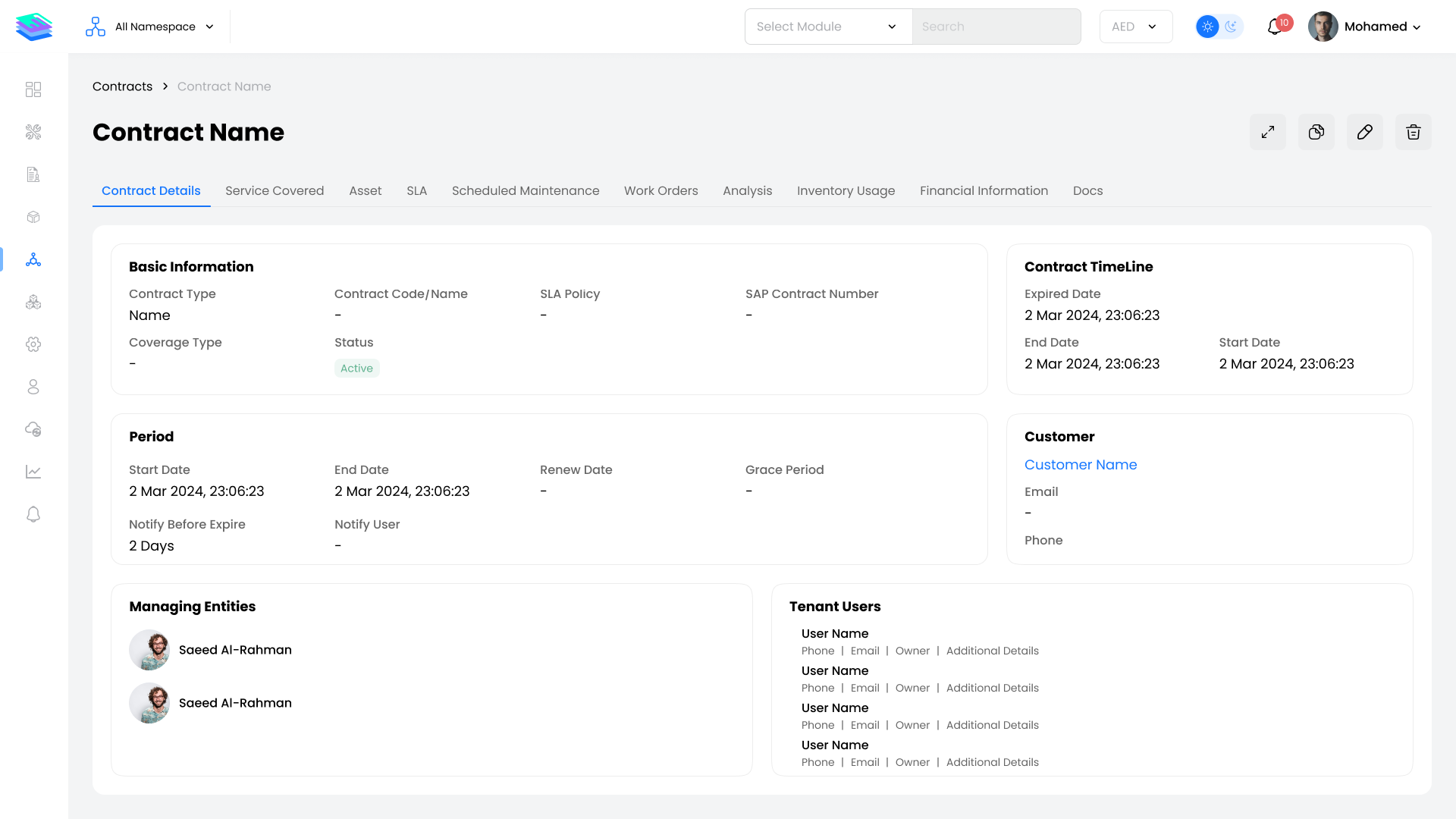
Fields Displayed:
- Contract Name and SAP Reference
- Customer/Subcontractor Name
- Contract Type and Coverage Type
- Description
- Start Date, End Date, and Renew Date
- Contract Status
- Managing Entities
- Linked SLA
Service Covered Tab
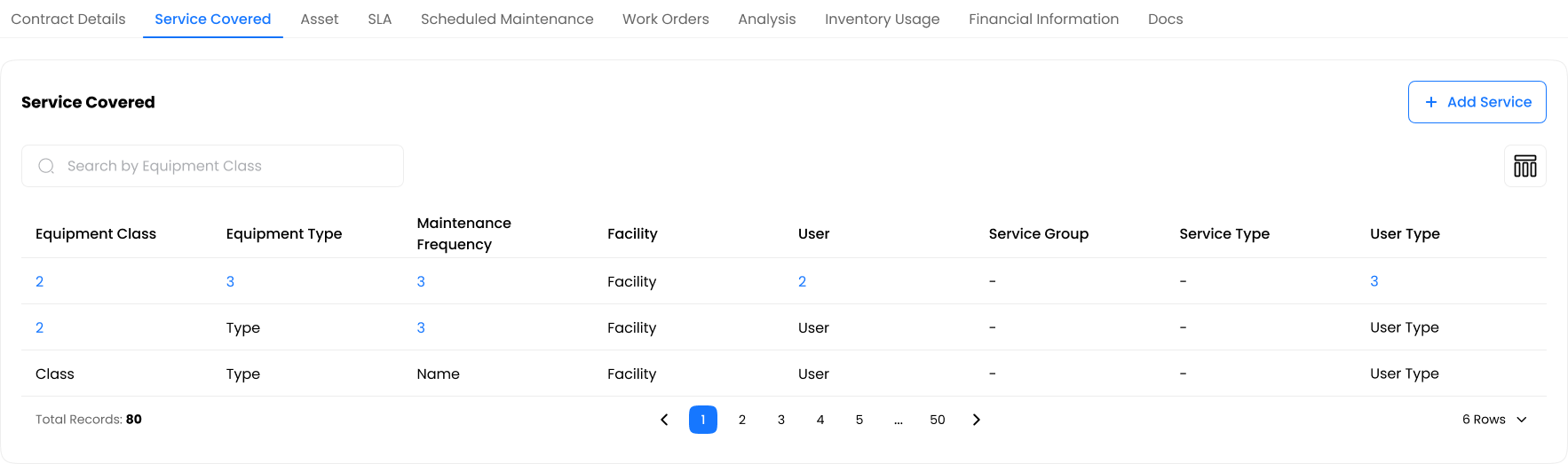
| Column | Description |
|---|---|
| Service Group | Category of service (e.g., Maintenance, Inspection) |
| Service Type | Specific service (e.g., Oil Change, Safety Check) |
| Maintenance Frequency | How often service occurs |
| Facility | Service location |
| Equipment Class | Equipment category |
| Equipment Type | Specific equipment type |
| User | Responsible person/role |
Assets Tab
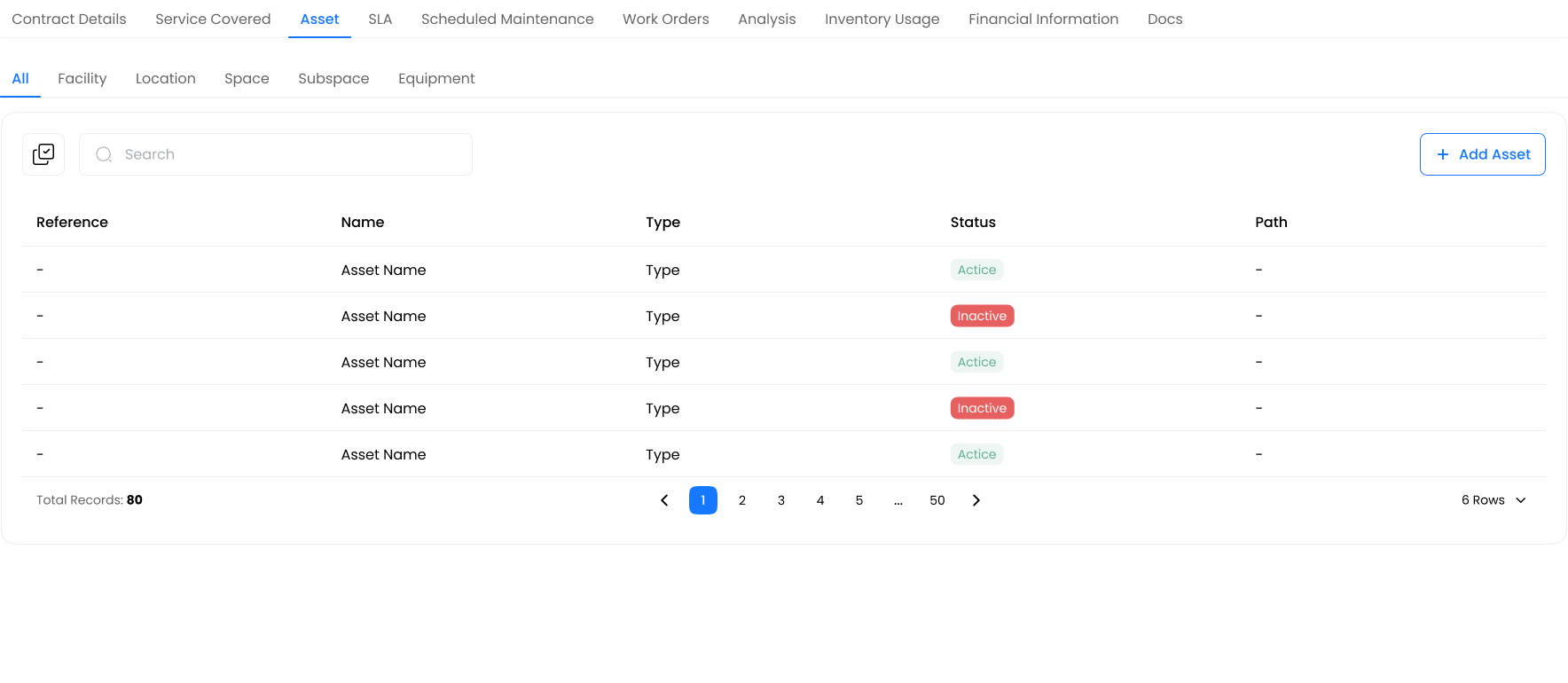
Lists all assets covered by the contract with their codes, types, and locations.
SLA Tab
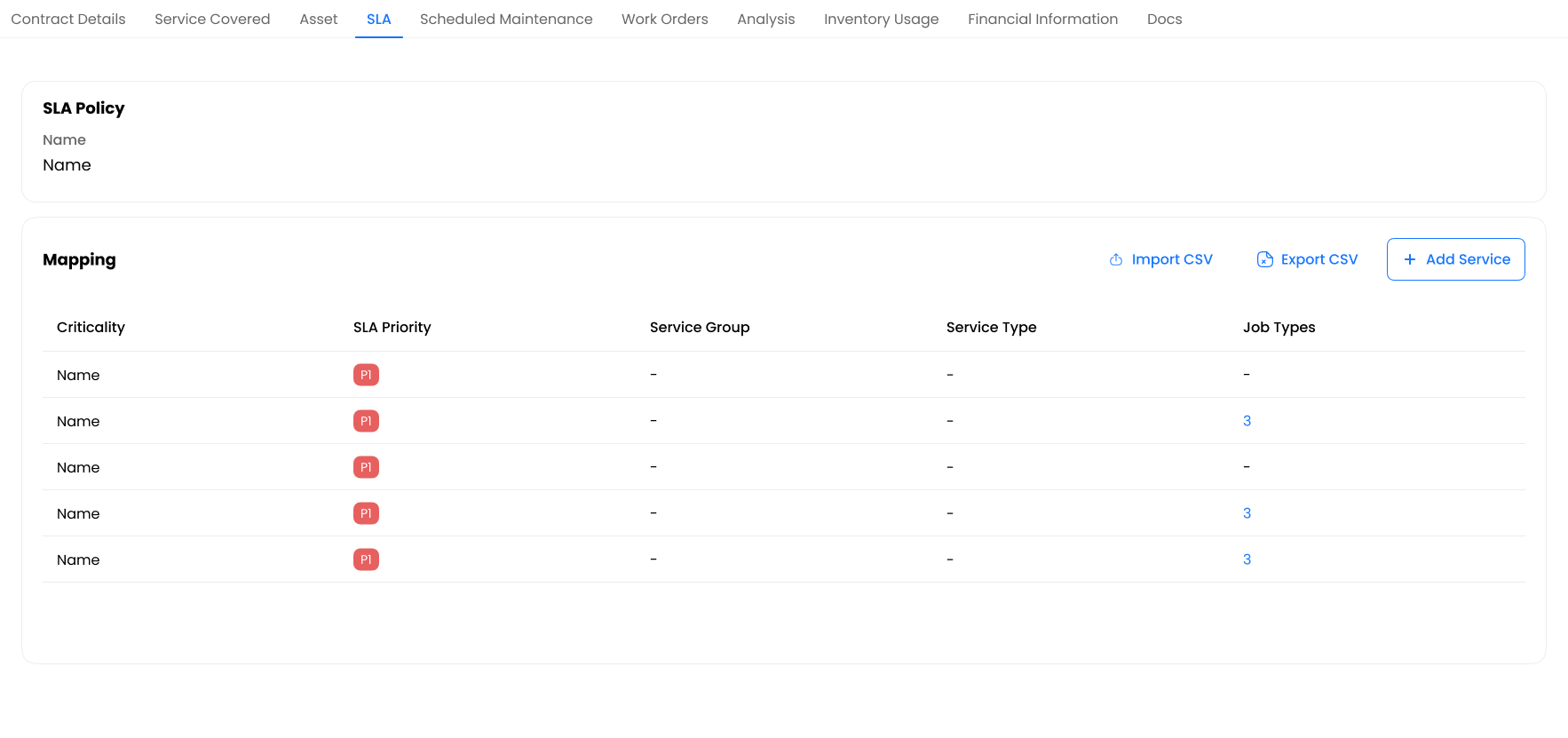
| Column | Description |
|---|---|
| Criticality | Importance level (High, Medium, Low) |
| SLA Priority | Response priority tier |
| Service Group | Service category |
| Service Type | Specific service |
| Job Types | Included job categories |
Additional Tabs
| Tab | Screenshot |
|---|---|
| Scheduled Maintenance | 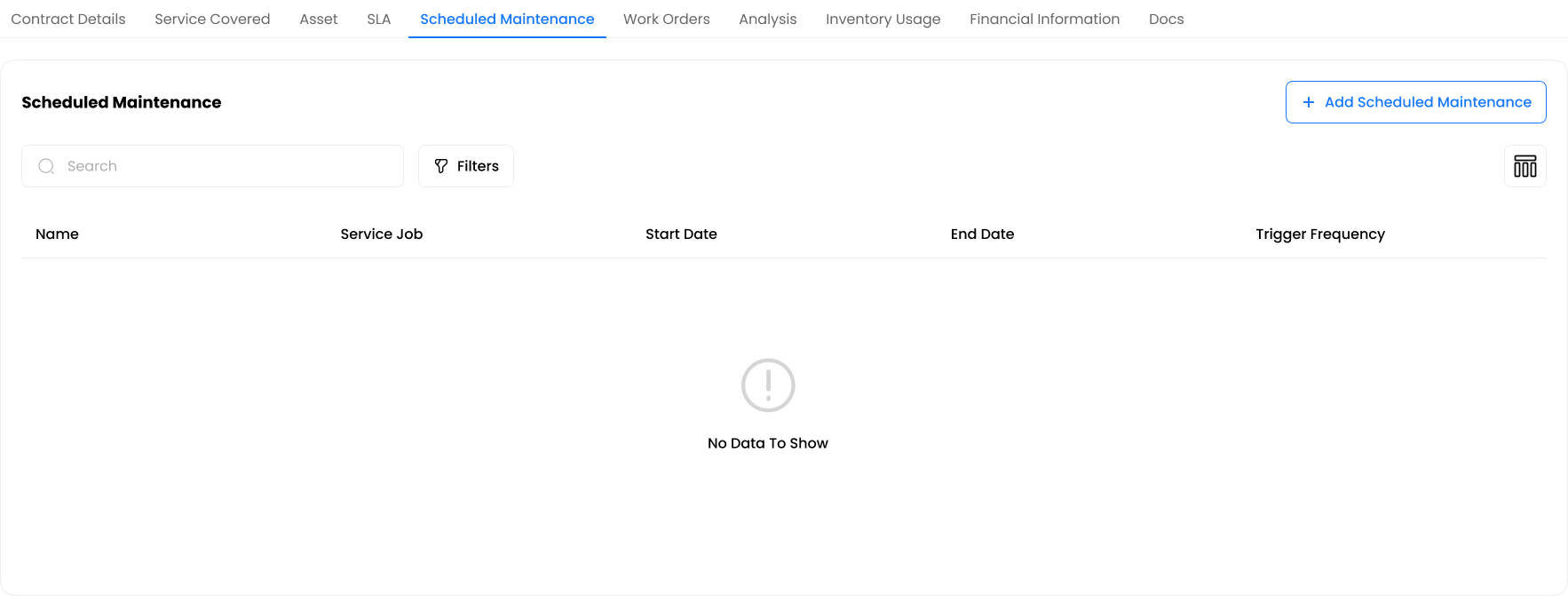 |
| Work Orders | 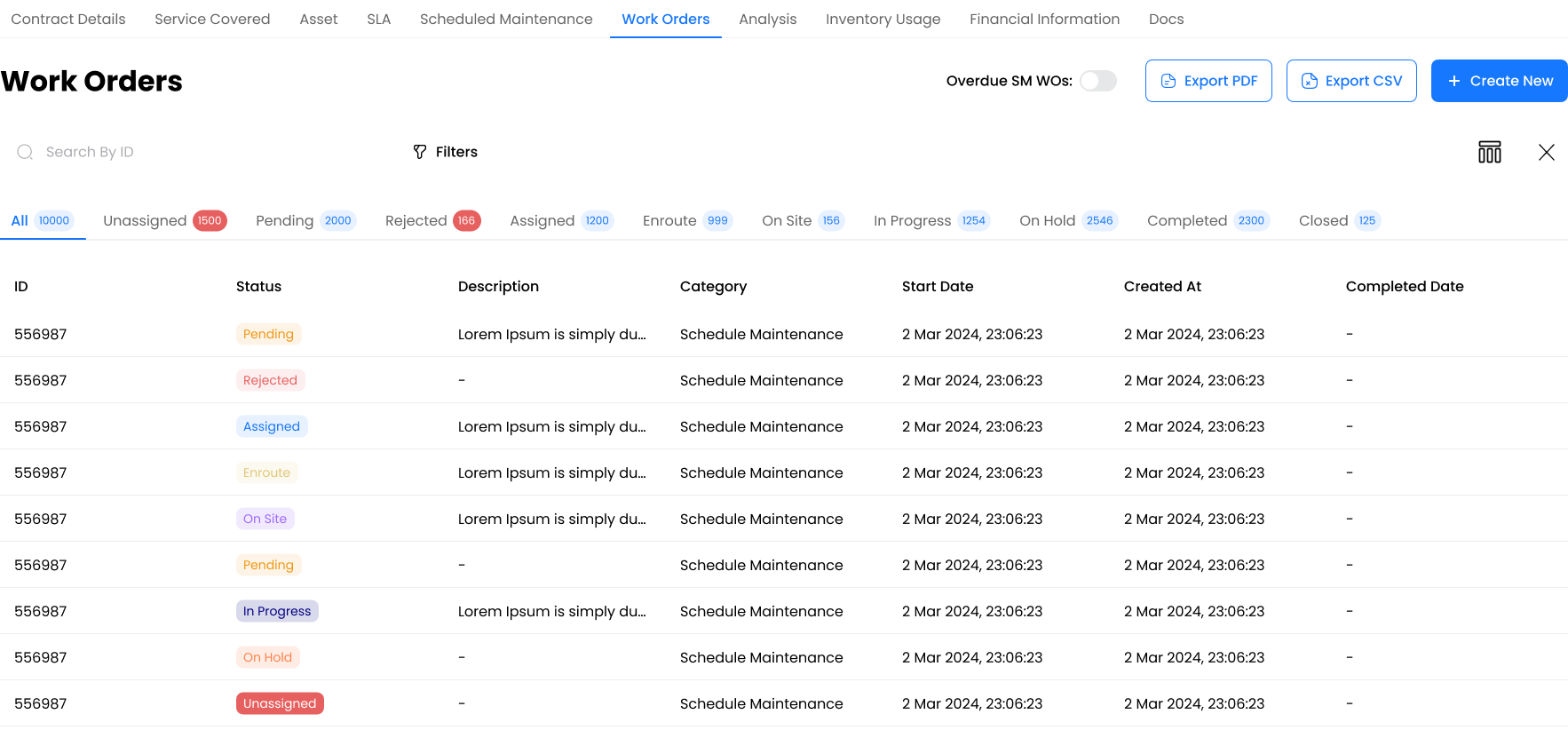 |
| Analysis | 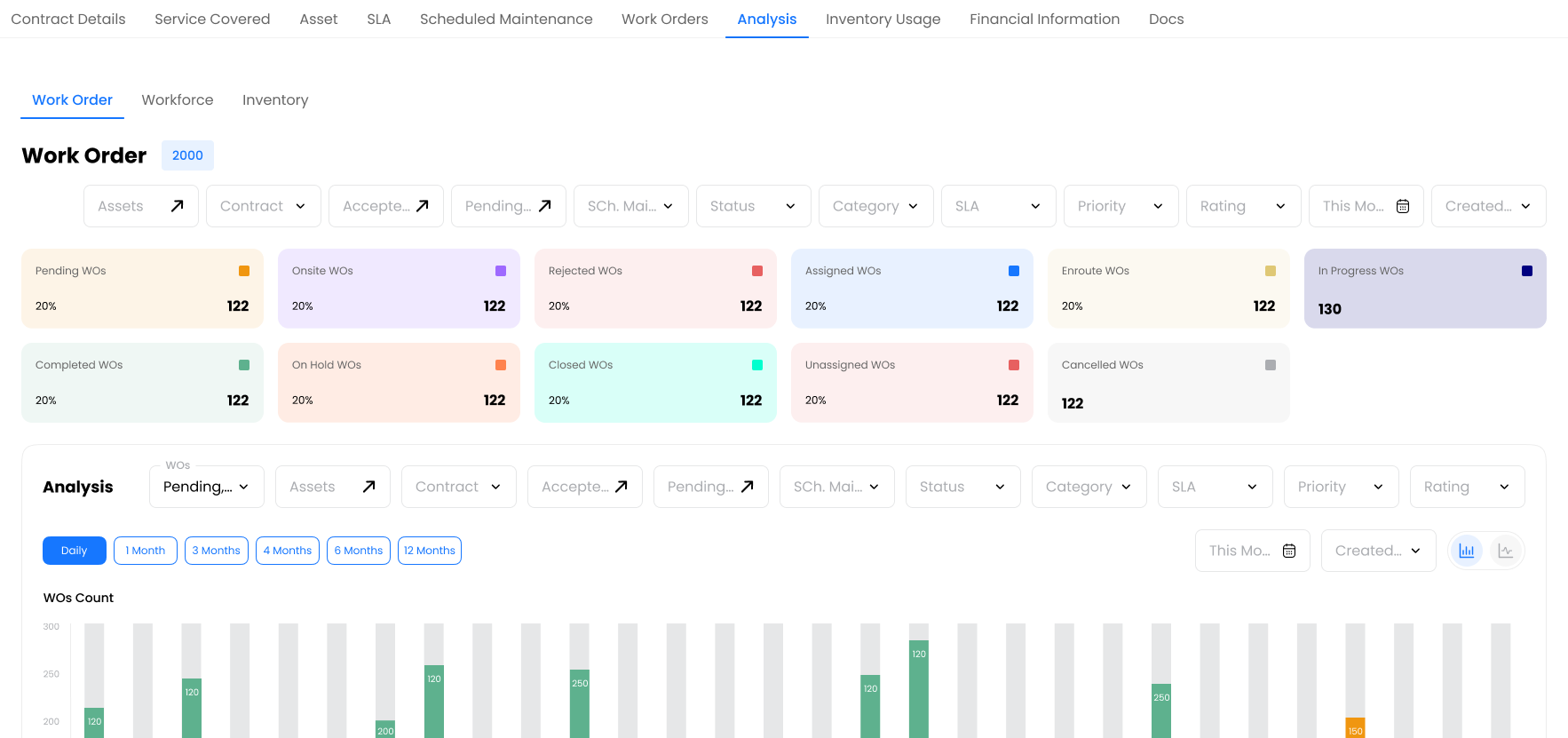 |
| Inventory Usage | 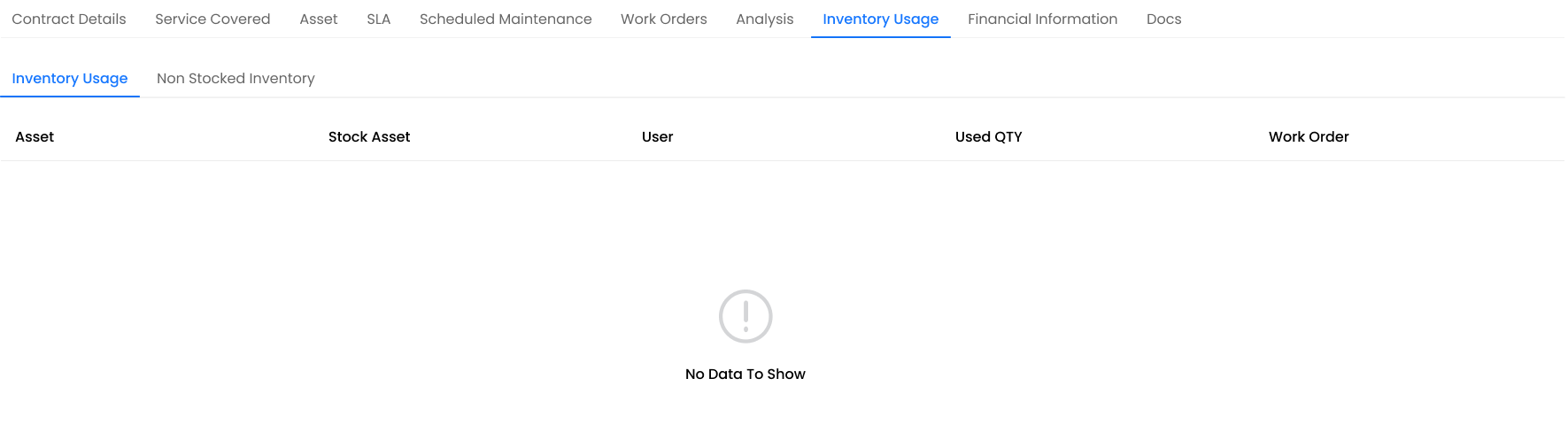 |
| Financial Information | 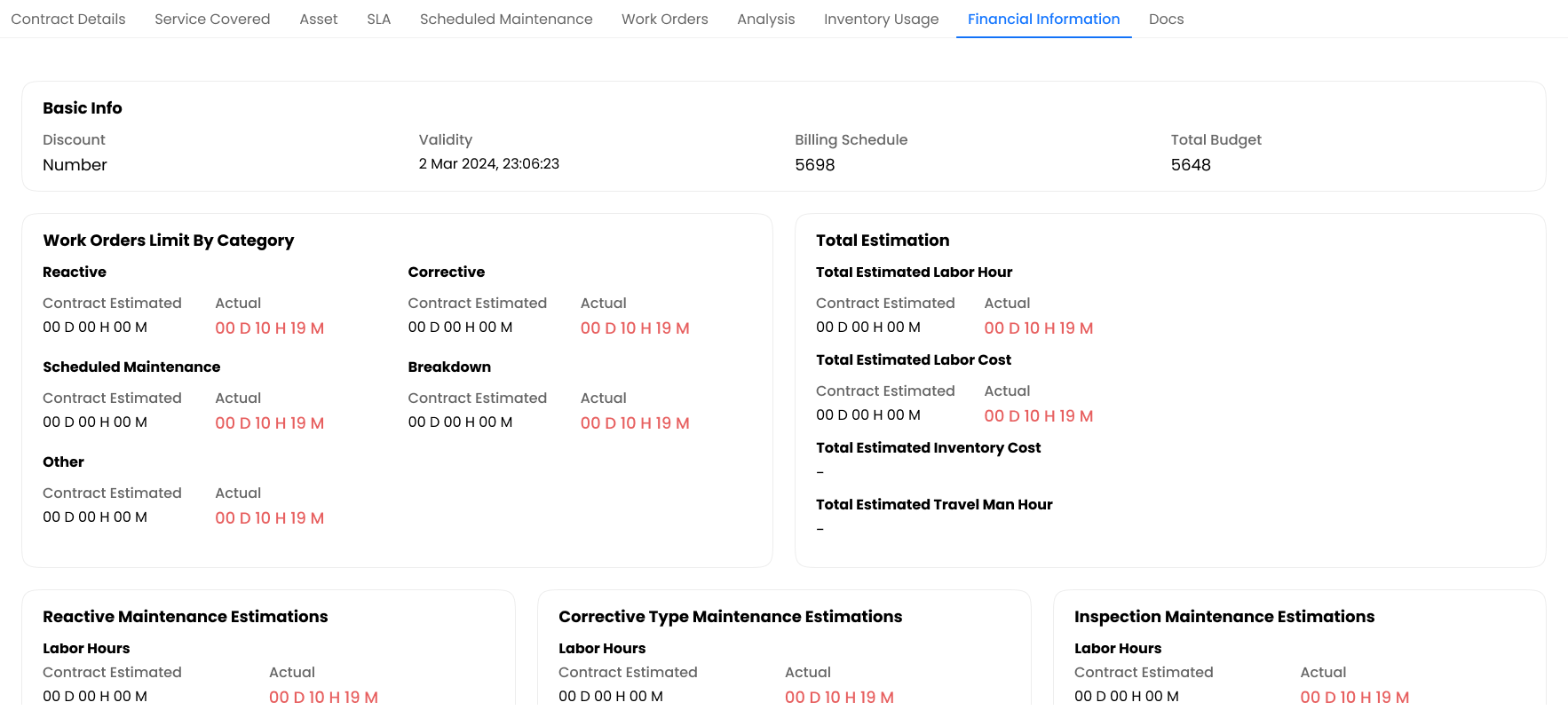 |
| Docs | 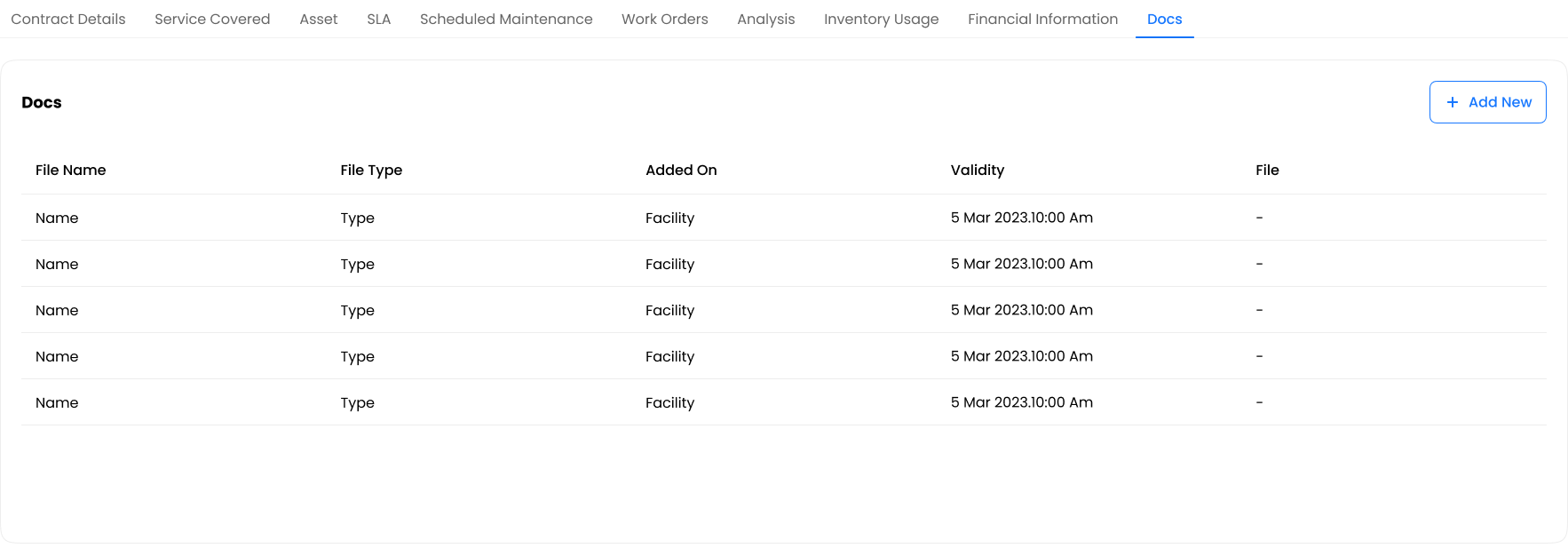 |
Copy Contract
Quickly create a new contract by duplicating an existing one:
- Hover over any contract row in the list view
- Click the Copy Contract button
- The contract creation wizard opens with all fields pre-filled
- Modify any fields as needed
- Save the new contract
Use Cases:
- Creating contract renewals
- Duplicating contracts for different customers
- Using existing contracts as templates
Key Notes
- Create SLA policies before contracts to enable SLA assignment
- Contract status updates automatically based on dates
- Work order limits can be set per category (Reactive, Corrective, Scheduled)
- Use Copy Contract to streamline renewals and similar agreements
- All contract activities are tracked for compliance reporting